


1. Match the Template to Your Content Type
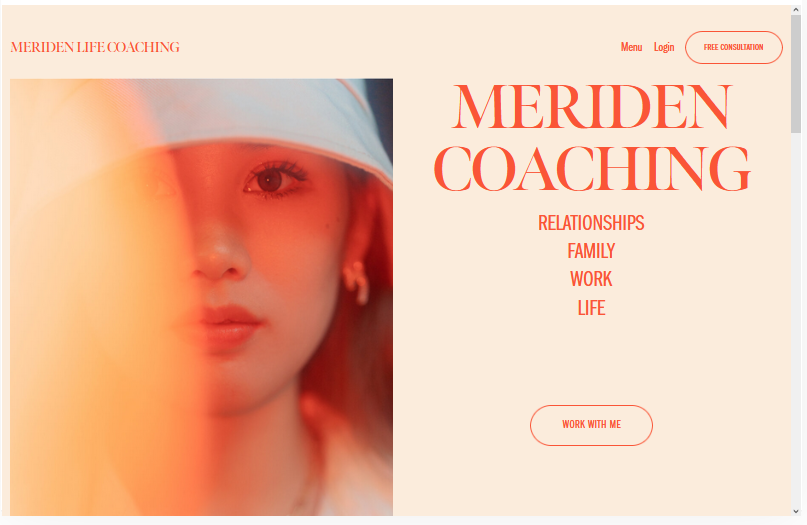
Different templates are optimized for different content types. Portfolio templates showcase visual work with large images and gallery layouts. Blog templates emphasize text content with reading-focused layouts. Commerce templates feature product grids and checkout flows. Service templates highlight offerings with CTA-focused sections.
Choose a template designed for your primary content type. A photographer using a blog-optimized template will spend hours forcing it to display images the way a portfolio template does natively. Start with the right foundation and customize from there. For design strategies, our Squarespace design tips guide covers matching templates to content types.
2. Check the Mobile Preview
Every template looks different on mobile. Before choosing, preview the template's demo site on your phone, not just the desktop preview. Check: does the navigation work well on mobile? Do images scale properly? Is the text readable? Does the layout feel organized or chaotic on a small screen? Over 60% of your visitors will see the mobile version. For mobile considerations, our guide to Squarespace mobile optimization covers responsive template evaluation.
3. Evaluate the Header and Navigation Options
The header is on every page, its layout, logo placement, and navigation style affect your entire site. Check whether the template supports: the header layout you want (logo left, centered, split nav), sticky navigation, transparent header overlays, a search icon, and a header CTA button. On 7.1, all templates share the same header options. On 7.0, header features vary significantly by template. For navigation customization, our guide to editing the navigation bar covers header configuration.
4. Check Page Layout Flexibility
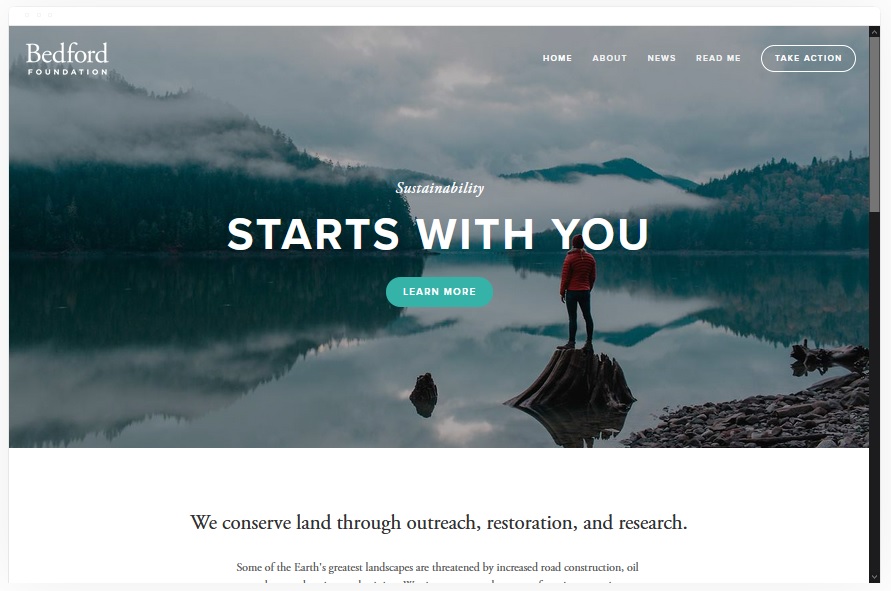
Can the template produce the layouts you need? On 7.1 with the Fluid Engine, all templates support freeform layouts. On 7.0, layout options depend on the template, some allow flexible column arrangements while others are more rigid. Open the template's demo editor (if available) and try building a layout similar to what you envision. If it feels limited, choose a different template. For layout capabilities, our guide to Squarespace custom layouts covers what is achievable with each editor.
5. Review the Design Customization Panel
Open the template's Site Styles panel and check which design options are available. On 7.1, all templates share consistent design controls. On 7.0, the Site Styles panel varies by template, some offer extensive font, color, and spacing controls while others are limited. If a design setting you need is missing, you will need Custom CSS to achieve it. For CSS customization, our guide to Squarespace custom CSS covers styling beyond Site Styles.
6. Test Blog and Commerce Features
If you plan to blog or sell products, test those features in the template preview. Check: blog post layout (single column, grid, side-by-side), blog sidebar options, product page layout, product grid appearance, and checkout page styling. Different templates present these features differently, and the default styling affects how much customization you need. For commerce setup, our guide to Squarespace e-commerce customization covers product and checkout configuration.
7. Consider Future Scalability
Your site will grow. A template that works for five pages may feel cramped with twenty. Check: does the navigation support dropdown submenus? Can you add secondary navigation or footer navigation? Does the template handle long pages well? Does it support the Fluid Engine (7.1) for flexible future layouts? Choose a template that accommodates growth, not just your current content.
8. Check Loading Speed
Some templates load faster than others due to differences in default CSS, JavaScript, and image handling. Run the template demo site through Google PageSpeed Insights and note the score. A template that scores poorly out of the box will require optimization effort. All else being equal, choose the faster template. For speed optimization, our Squarespace page speed guide covers performance techniques that apply to any template.
For 7.0 users, understanding what happens to your index page during template switches is critical before making changes.
Squarespace 7.0 vs. 7.1 Template Considerations7.0 Templates
Named templates (Brine, Bedford, York, Farro, etc.) with template-specific features. Switching templates on 7.0 requires redesigning your site because different templates use different HTML structures and design options. Choose carefully, switching is expensive in time and effort.
7.1 Templates
All 7.1 templates share the same feature set and customization options. The template choice is primarily about the starting layout and default styling. You can customize any 7.1 template to look like any other with enough styling work. Switching between 7.1 starting designs is less disruptive than switching 7.0 templates. For version differences, our guide to checking your Squarespace version covers the implications of each version.
You Do Not Need to Buy a Squarespace Template
Unlike WordPress, Squarespace templates are included with every plan. There is no template marketplace and no premium templates to purchase. Every template is available to every user at no additional cost. Third-party "Squarespace templates" sold online are typically design guides or CSS customization files, not actual templates you install. Be cautious of third-party offerings that claim to sell Squarespace templates.
Template Selection Best Practices
Start with content, not design. List the pages you need, the content types you will publish, and the actions you want visitors to take. Then find the template that supports those needs natively.
Do not choose based on the demo content. Every template's demo looks polished because it uses professional photography and well-written copy. Your site will use your content, evaluate the layout and structure, not the demo images.
Preview on multiple devices. Check desktop, tablet, and phone. The template needs to work well on all three.
Consider your technical comfort level. Templates that look simple are easier to customize for non-technical users. Templates with complex layouts may require Custom CSS for adjustments. Choose a template whose default styling is close to what you want, the less you need to change, the faster you launch. For broader site setup, our guide to customizing your Squarespace website covers the full design workflow.
Frequently Asked Questions
Do I need to buy a Squarespace template?
Can I change my Squarespace template later?
What is the best Squarespace template?
Are all Squarespace templates mobile responsive?
What should I look for when choosing a Squarespace template?
Is Squarespace 7.0 or 7.1 better for templates?
Can I preview a Squarespace template before choosing it?
Choose Once, Build Confidently
Your Squarespace template is the foundation of your site. Choosing the right one from the start, based on content type, mobile experience, navigation options, and layout flexibility, saves hours of customization work later.
Evaluate the eight factors in this guide before committing. Start a free trial to test with your actual content. And remember: on 7.1, every template can become any design with enough customization. The starting point matters less than the work you put into making it yours.
If you're still in the early research stage, our guide to how many Squarespace templates are available gives you a full picture of the library size, how templates are organized by category, and the key differences between version 7.0 and 7.1.
* Read the rest of the post and open up an offer